




How to Save a Pinterest Board as a PDF
Last updated: September 2026 · ~5 min read
Pinterest has no PDF or print button for boards. You have three options. Print the board page to PDF from your browser: fast, but you get small preview images and a messy layout. Download the board's original images as a ZIP and combine them into a PDF on Mac or Windows: full quality, one image per page. Or send the board to Figma, arrange it on pages and export: the best result for a client-ready moodboard.
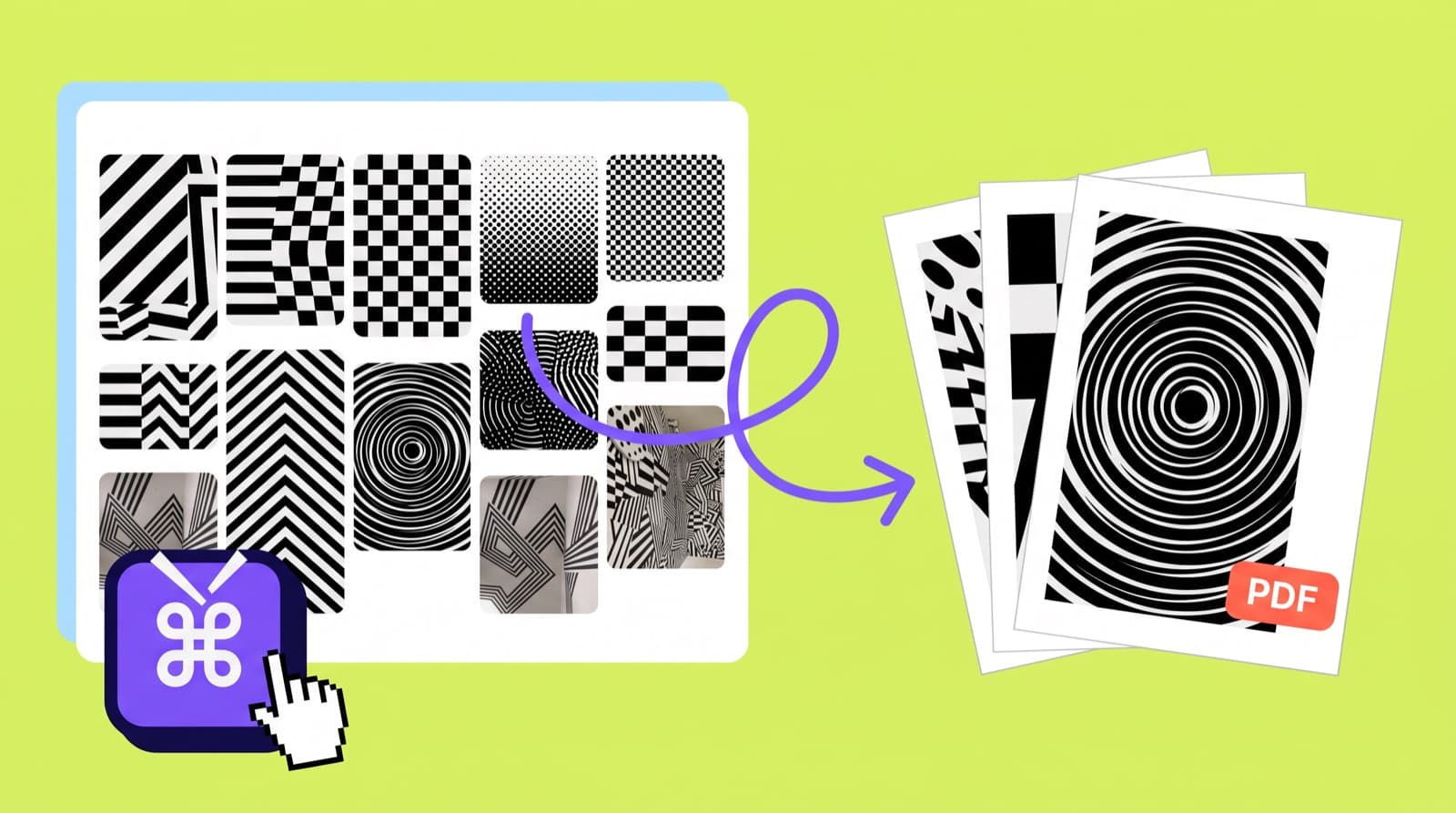
The three methods at a glance
| Method | Image quality | Layout | Best for |
|---|---|---|---|
| 1. Print the board page | Preview size | Pinterest's grid, split across pages | A quick, rough snapshot |
| 2. ZIP to PDF | Originals | One image per page, or a contact sheet | Archives, offline reference, print |
| 3. Figma to PDF | Originals | Any layout you want, with titles and notes | Client moodboards and presentations |
Method 1: Print the board page to PDF
This works in any desktop browser and needs no tools.
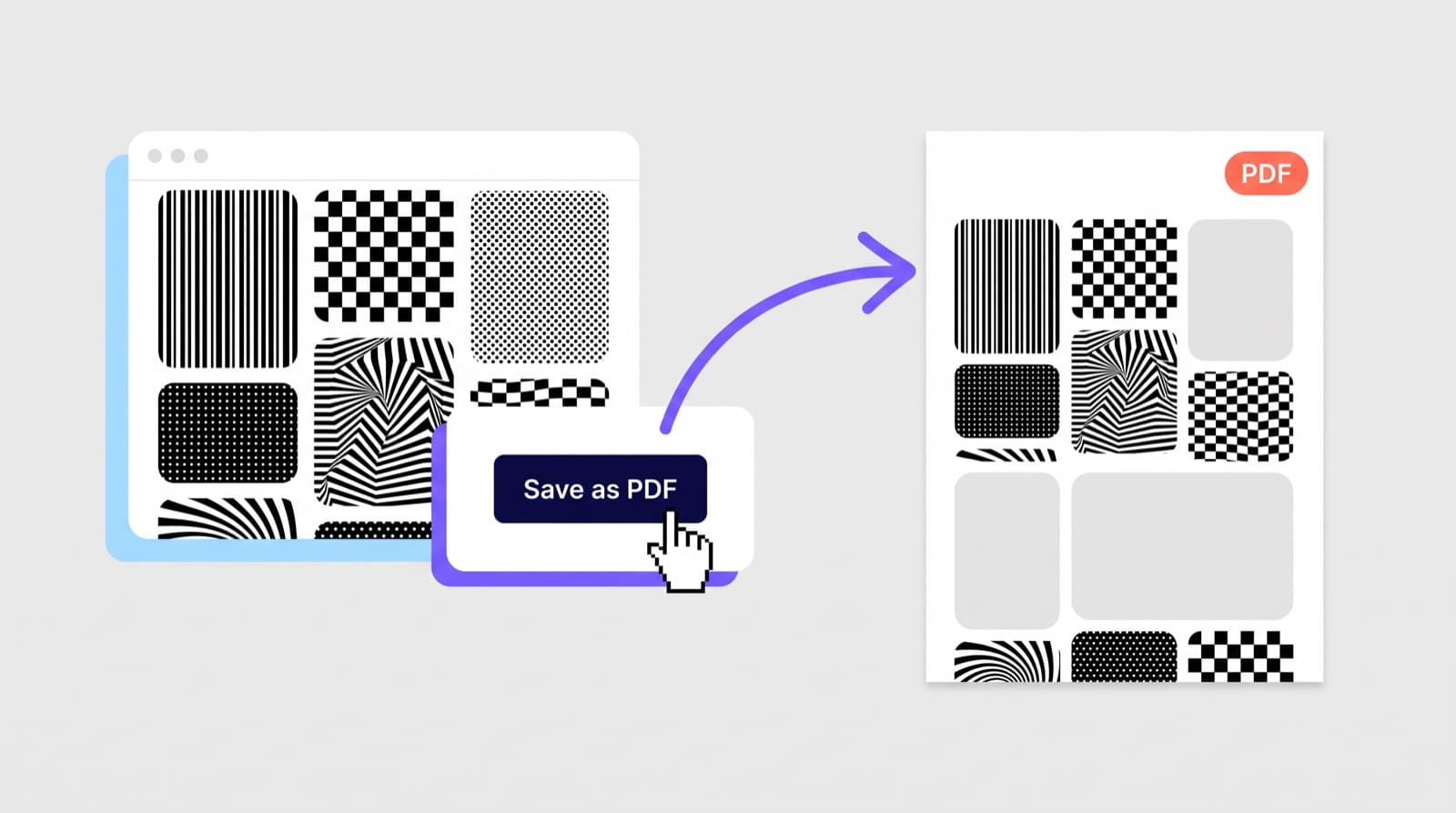
- Open the board. If it has sections, open All Pins.
- Scroll to the bottom and back up so every pin has loaded. Pinterest only loads pins as you scroll, and pins that never loaded print as empty boxes.
- Press Cmd+P (Mac) or Ctrl+P (Windows) and set the destination to Save as PDF.
What you get is a picture of the web page: the grid-sized previews, pins cut in half at page breaks, and bits of Pinterest's interface. It is fine for a quick record of a small board. For anything you will show someone, use method 2 or 3.
Method 2: Download the board, then combine the images into a PDF
First, get the images off the board at full size. Right-clicking pins one by one gives you previews, usually 736 px wide. A board downloader fetches the original upload for every pin instead.
Step 1: Download the board as a ZIP
- Install Pinpasta for Chrome or Firefox.
- Open the board and click Extract this board in the extension.
- Click Download ZIP and unzip the file.
Every file is numbered in board order (001_, 002_ and so on), so sorting the folder by name keeps your PDF pages in the same order as the board. The free plan downloads the first 20 pins of a board. PRO, a one-time license, downloads the whole board. The full walkthrough is in our Pinterest board downloader guide.
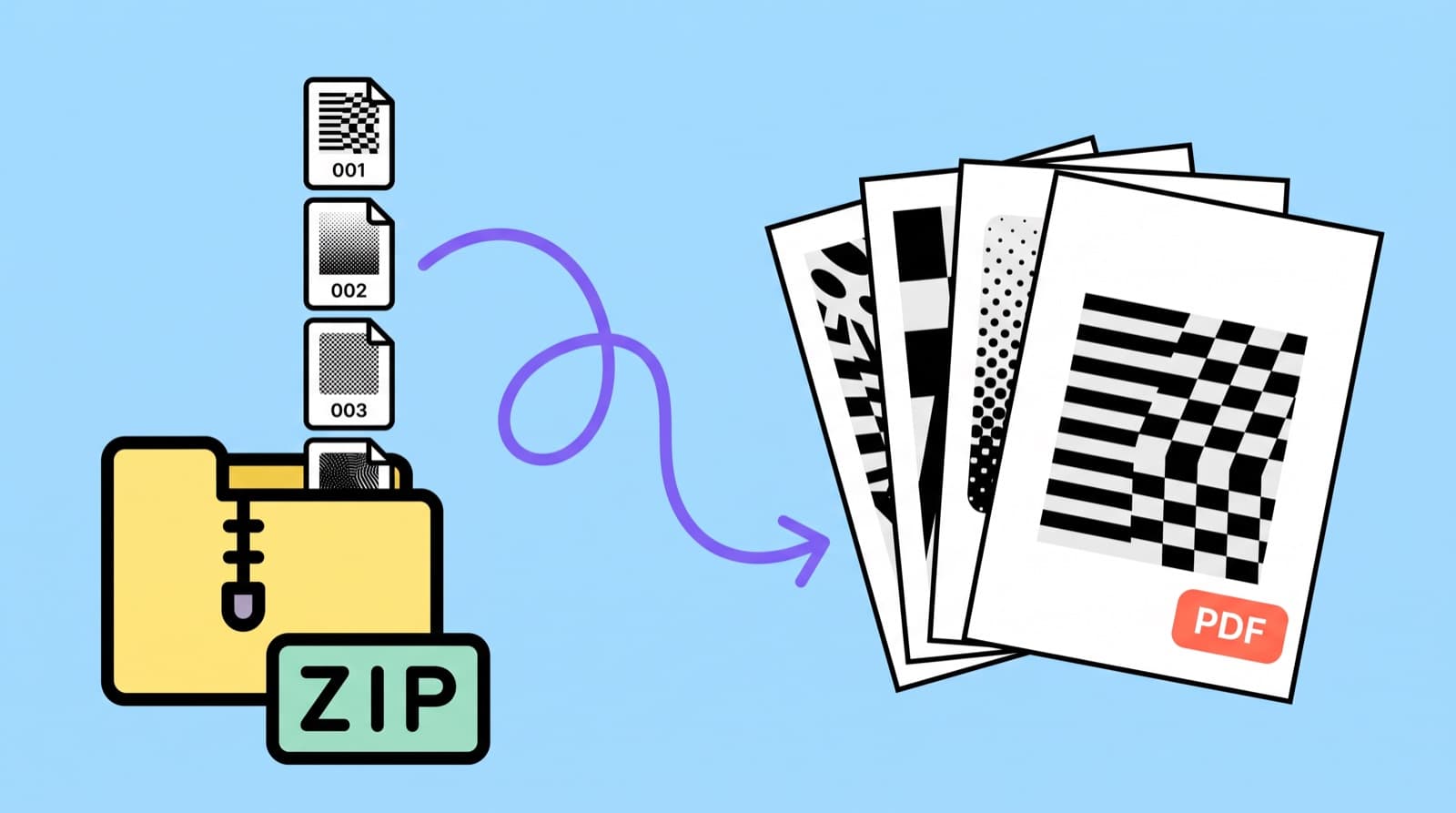
Step 2 on a Mac: Create PDF in Finder
- Open the unzipped folder in Finder and sort it by name.
- Select all the images (Cmd+A).
- Right-click and choose Quick Actions → Create PDF.
Finder saves a single PDF next to the images, one image per page.
Step 2 on Windows: Microsoft Print to PDF
- Open the unzipped folder in File Explorer and sort it by name.
- Select all the images (Ctrl+A), right-click and choose Print. On Windows 11 it sits under Show more options.
- Set the printer to Microsoft Print to PDF.
- Pick a layout: Full page photo for one image per page, or Contact sheet for a grid. Click Print and name the file.
Method 3: Lay the board out in Figma and export a PDF
If the PDF is going to a client, you probably want more than one image per page: a grid, a title, a few notes on palette or materials. Figma is free for this, and it exports PDFs directly.
- Install the Pinpasta extension and the free Pinpasta Figma plugin.
- Open the board, click Extract this board, then Copy to Figma.
- In Figma, run the Pinpasta plugin and paste. The pins land on the canvas at full resolution. The free plugin places 30 pins per paste; PRO removes that cap.
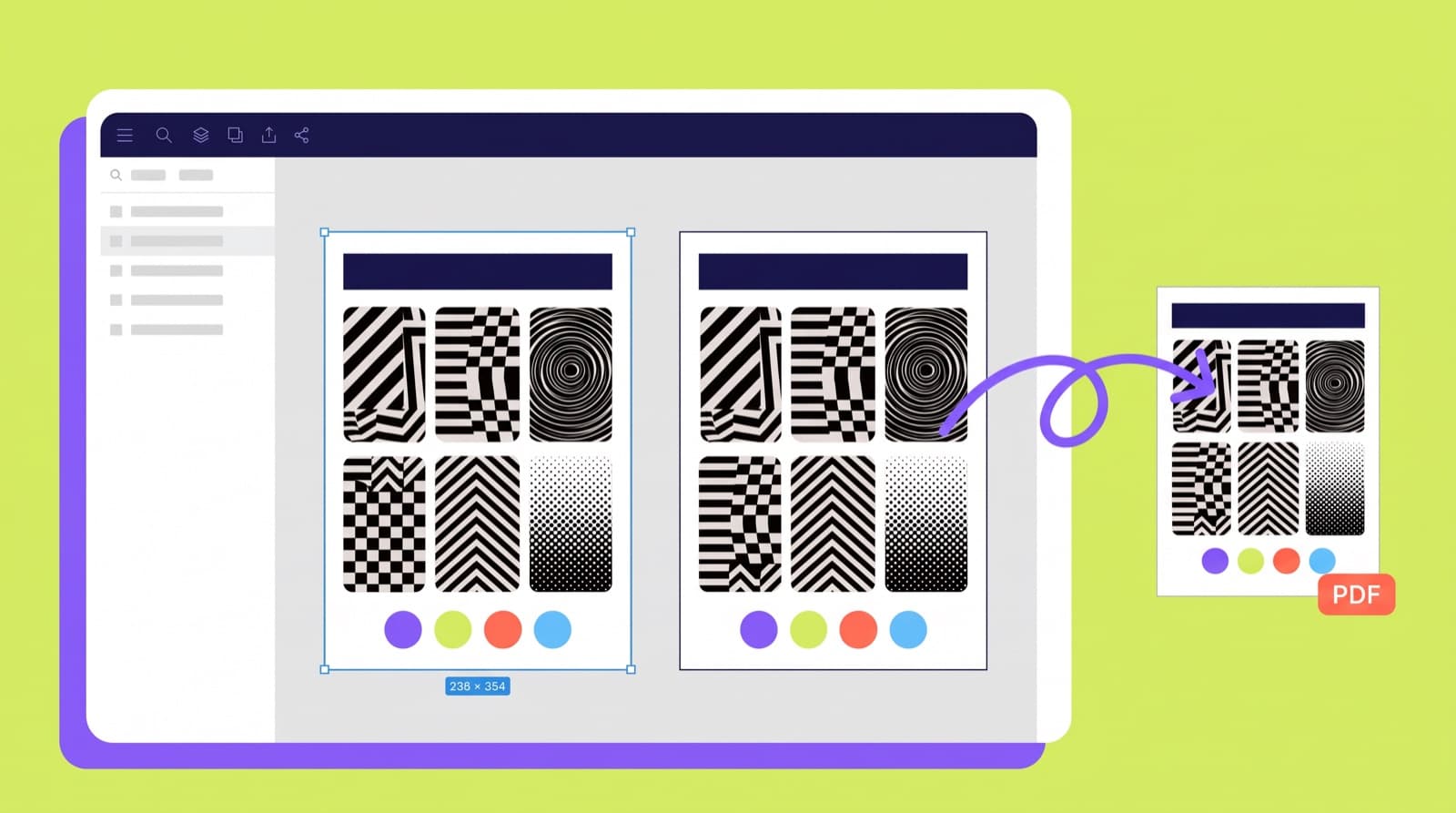
- Draw a frame with the Frame tool (F) and pick A4 or Letter from the paper presets in the right panel.
- Drag images into the frame, select them and press Shift+A to add auto layout. Set it to wrap for a tidy grid. Add a heading and notes.
- Duplicate the frame for more pages, then choose File → Export frames to PDF. Figma saves every top-level frame as one page, in order.
You also keep a live Figma file you can share for comments. If you are building a moodboard, our guide to creating a moodboard from Pinterest goes further on layout.
What about tools with a PDF button?
Pin Toolbox, a subscription Chrome extension, has PDF export and printing built in. If you make board PDFs every week and don't care about the layout, that is less clicking. For a one-off, or when the PDF needs to look like a presentation, methods 2 and 3 get you there without a subscription. We compare the two in Pin Toolbox vs Pinpasta.
A note on copyright
The images on a board belong to the people who made them. A PDF for your own reference, a team workshop or a client moodboard is the normal use. If an image is going into published or sold work, license it from the creator.
Frequently asked questions
Q: Can you export a Pinterest board to PDF?
A: Not from Pinterest itself. There is no PDF or print option for boards. You can print the board page to PDF from your browser, combine a ZIP of the board's images into a PDF on Mac or Windows, or lay the images out in Figma and export the frames as a PDF.
Q: Does Pinpasta export a board as a PDF?
A: Not directly. Pinpasta downloads the board's original images as a ZIP or sends them to Figma, and both turn into a PDF in a couple of minutes using the steps on this page.
Q: How do I keep the pins in board order in the PDF?
A: Pinpasta numbers every file in board order (001_, 002_, and so on). Sort the folder by name before you create the PDF and the pages follow the board.
Q: Will the images in the PDF be high quality?
A: Printing the board from your browser gives you Pinterest's preview images. Downloading the board first gives you the original uploads, typically 1,200 to 4,000 px on the long edge, which hold up on screen and in small-format print.
Q: Can I save someone else's Pinterest board as a PDF?
A: If you can open the board, you can download it: public boards, and private or group boards you have access to while logged in. The images still belong to their creators, so keep the PDF for reference and inspiration.
Get the originals first
Pinpasta downloads a whole Pinterest board as a ZIP of original images with real filenames, or sends it straight into Figma. Runs in your browser. Free for the first 20 pins per ZIP and 30 pins per Figma paste.