




How to Backup Pinterest Boards: Protect Your Curated Collections
Last Updated: March 2026
You've spent months—maybe years—curating Pinterest boards. Every saved pin represents time, taste, and carefully selected inspiration. Then one day, you log in and your account is suspended. Or a board you relied on for a client project has disappeared. Or Pinterest changes its policies and your private boards become inaccessible. If you don't have a backup of your Pinterest boards, all that curation work vanishes instantly. Here's how to backup Pinterest boards properly so you never lose your visual libraries.
Why You Need to Backup Pinterest Boards
Pinterest is a third-party platform. You don't own your boards—you're renting space on Pinterest's servers. That creates multiple points of failure that could cost you hundreds of hours of curation work.
Account Bans and Suspensions
Pinterest's automated systems flag accounts for spam, copyright violations, and terms of service breaches. Sometimes these flags are accurate. Often they're false positives. Either way, when Pinterest suspends an account, you lose access immediately—no warning, no appeal window, no grace period to export your data. If you haven't backed up your boards, they're gone.
Creative professionals who use Pinterest heavily are especially vulnerable. If you're saving dozens of pins daily for client projects, Pinterest's spam detection might flag your account as bot activity. One creative director we spoke with lost access to 47 carefully curated project boards overnight. No backup meant starting from scratch.
Deleted Content and Broken Links
Pinterest pins link to external websites. When those sites go offline or remove content, the pins break. The thumbnail image might remain, but the original high-resolution source is lost. Over time, board quality degrades as more pins become dead links.
Worse, Pinterest occasionally purges content that violates evolving content policies. A board that was fine two years ago might get scrubbed today if policy changes retroactively affect your saved pins. Backing up boards preserves content in its current state, regardless of future platform decisions.
Platform Risk and Policy Changes
Social platforms change. Features get deprecated. Pricing models shift. In 2022, Twitter became X and many users lost access to archived content during the transition. Pinterest is more stable, but no platform is permanent. Regular backups insulate you from whatever changes Pinterest makes to its service, pricing, or data portability policies.
Professional Liability
If you're a creative professional using Pinterest boards for client work, losing a project board mid-engagement is a disaster. Imagine telling a client you can't deliver the moodboard you promised because your Pinterest account got suspended. A backup strategy isn't just smart—it's professional risk management.
Backup Pinterest Boards: 4 Methods Compared
There are several ways to backup Pinterest boards. They vary in speed, completeness, and ease of use. Here's an honest comparison.
Method 1: Manual Download (Slowest, Least Reliable)
You can manually right-click each pin and save the image to your computer. This is painfully slow—expect 30+ minutes for a 50-pin board. Worse, right-click saving often grabs low-resolution thumbnails, not the full-size images a proper Pinterest image downloader would preserve.
When to use this: Never, unless you're backing up 5-10 pins and have no other option. This method doesn't scale and doesn't preserve quality.
Method 2: Pinterest Data Export (Complete, Inconvenient)
Pinterest offers a native data export feature under Settings → Privacy and Data. Request your data, and Pinterest emails you a ZIP file containing your account information, boards, and pin metadata. This sounds great until you realize:
- The export contains URLs and metadata, not the actual images
- Processing takes 1-3 days
- You get a JSON file that requires technical knowledge to parse
- Images aren't included—you'd still need to download them separately
When to use this: If you want a full account archive for compliance or legal purposes. Not practical for quickly backing up visual content.
Method 3: Browser Automation Scripts (Technical, Unreliable)
Developers sometimes use browser automation tools (Selenium, Puppeteer) to scrape Pinterest boards. This works in theory but breaks frequently as Pinterest updates its front-end code. You need coding knowledge to set it up and maintain it. Not a solution for non-technical users.
When to use this: If you're a developer comfortable maintaining custom scraping scripts and don't mind them breaking every few months.
Method 4: Pinpasta Browser Extension (Fast, High-Quality, Easy)
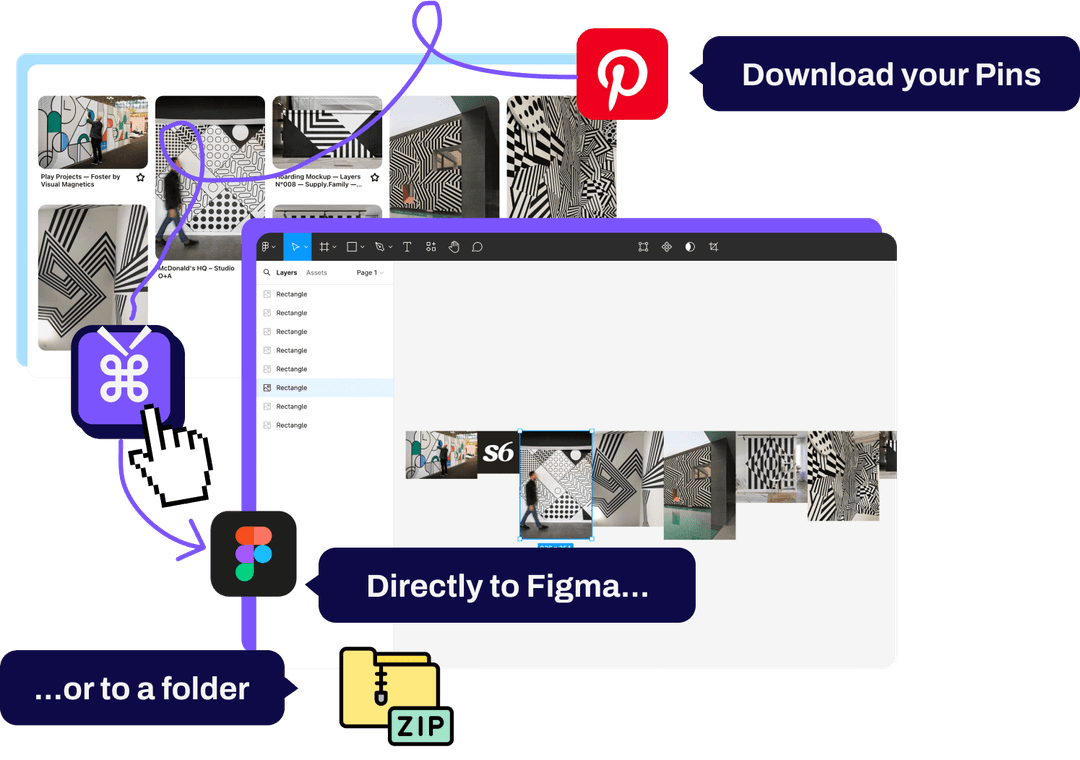
Pinpasta is a browser extension (available for Chrome and Firefox) built specifically to backup Pinterest boards. Navigate to any board, click the extension icon, hit "Extract," and use it as a Pinterest board downloader to get the entire board as a ZIP file with high-resolution images. The process takes under a minute for most boards, works on boards with 1,000+ pins, and requires zero technical knowledge.
When to use this: Anytime you want a fast, reliable backup of Pinterest boards. This is the most practical method for creative professionals.
How to Backup Pinterest Boards with Pinpasta
Here's the step-by-step process for backing up your Pinterest boards using Pinpasta:
Step 1: Install Pinpasta
Install the Pinpasta extension from the Chrome Web Store or Mozilla Add-ons. It works on Chrome, Firefox, Edge, and Brave. Installation takes 10 seconds.
Step 2: Open the Board You Want to Backup
Navigate to any Pinterest board—yours or someone else's public board. Pinpasta works on public boards, private boards, and secret boards (as long as you have access).
Step 3: Extract the Board
Click the Pinpasta icon in your browser toolbar and click "Extract." The extension scans the board and processes all pins, grabbing the highest resolution image available for each.
Extraction time depends on board size. A 50-pin board takes 10-15 seconds. A 500-pin board might take 1-2 minutes. Pinpasta handles large boards (1,000+ pins) without issue.
Learn more about bulk downloading Pinterest boards or see our comparison of all Pinterest downloaders.
Step 4: Download as ZIP
Once extraction completes, click "Download to ZIP." Pinpasta packages all images into a single ZIP file and saves it to your default downloads folder. The ZIP file is named after the board, making it easy to organize your backups.
The free version of Pinpasta downloads the first 20 pins of a board per ZIP and pastes up to 30 pins at a time into Figma. For complete ZIP backups of larger boards, the Pro version ($29 lifetime) removes both caps.
Step 5: Organize Your Backups
Create a dedicated folder on your computer or cloud storage (Google Drive, Dropbox) for Pinterest backups. Organize by project, client, or theme. Consider adding a date to folder names (e.g., "Brand-Identity-Inspiration-2026-02") so you can track backup versions over time.
How Often Should You Backup Pinterest Boards?
Backup frequency depends on how actively you curate and how critical the boards are to your work.
Active Project Boards: If you're actively curating a board for an ongoing client project, back it up weekly. This ensures that even if something goes wrong, you lose at most one week of curation work.
Reference and Inspiration Boards: For ongoing reference collections that aren't tied to specific projects, back up monthly or quarterly. These boards change slowly, so frequent backups aren't necessary.
Before Major Presentations: Always create a fresh backup the day before a client presentation. If your Pinterest account becomes inaccessible at the worst possible moment, you'll have offline copies ready.
After Significant Curation Sessions: If you spend an afternoon adding 50+ pins to a board, back it up immediately. Don't risk losing a big curation session to a sudden account suspension.
Storing Pinterest Board Backups Safely
Downloading backups is only half the strategy. You also need to store them somewhere durable and accessible.
Local Storage
Save backups to an external hard drive or NAS (network-attached storage). This gives you full control but requires manual management and doesn't protect against hardware failure.
Cloud Storage
Upload backup ZIPs to Google Drive, Dropbox, or iCloud. Cloud storage is convenient, accessible from anywhere, and protected against local hardware failure. Most creative professionals already pay for cloud storage, so this doesn't add cost.
Hybrid Approach (Recommended)
Keep one copy in cloud storage for accessibility and one copy on a local external drive for redundancy. This protects against both cloud service issues and local hardware failure.
What About Backing Up Other People's Boards?
Pinpasta works on any public Pinterest board, not just your own. This is useful for creative professionals who reference other curators' boards for inspiration.
For example, if you frequently reference a design studio's public board for typography inspiration, back it up. If that board gets deleted or made private, you'll still have access to the images.
Always respect copyright and usage rights. Just because you can download an image doesn't mean you can use it commercially. Use backed-up content for inspiration and reference, and license images properly for client work.
Recovering from Pinterest Account Loss
If your Pinterest account gets suspended or deleted, having backups means you haven't lost everything. You'll still have the images, organized by board.
From there, you can:
- Create a new Pinterest account and re-upload your pins (time-consuming but possible)
- Import the images into another inspiration management tool (Figma, Notion, Milanote)
- Use the images directly in your design work as offline reference material
Without backups, you're starting from scratch. With backups, you're inconvenienced but not devastated.
Alternatives to Backing Up Pinterest Boards
Some designers avoid the backup problem entirely by not depending on Pinterest long-term. They treat Pinterest as a discovery tool, but immediately move important finds into a more permanent system:
- Figma Libraries: Download key inspiration images and organize them in a permanent Figma file or shared library
- Notion Databases: Save images directly to Notion with tags and project associations
- Are.na: Use Are.na as an alternative to Pinterest with better data export options
This approach works but adds workflow overhead. Pinterest remains the best tool for visual discovery and curation—but only if you protect your work with regular backups.
Frequently Asked Questions About Backing Up Pinterest Boards
Q: Can I backup private or secret Pinterest boards?
A: Yes. As long as you're logged into Pinterest and have access to the board, Pinpasta can extract and backup private and secret boards.
Q: Will Pinterest ban my account for using a backup tool?
A: Pinpasta operates within Pinterest's guidelines by accessing publicly available content through standard web protocols. Thousands of creative professionals use it without issue.
Q: How big are Pinterest board backup files?
A: File size depends on board size and image resolution. A 50-pin board typically produces a 20-40 MB ZIP file. A 500-pin board might be 200-400 MB. High-resolution images create larger files.
Q: Can I backup multiple Pinterest boards at once?
A: Pinpasta processes one board at a time. To backup multiple boards, extract each board individually. This takes a few minutes per board depending on size.
Q: What image format does Pinpasta use for backups?
A: Pinpasta downloads images in their native format—usually JPG or PNG, depending on what the original pinner uploaded. The extension downloads the original full-resolution file, names each one with the pin id and title, and adds a report file listing every pin.
Q: Do Pinterest backups include pin descriptions and metadata?
A: Pinpasta focuses on backing up the images themselves. For full metadata export (descriptions, links, board organization), use Pinterest's native data export feature in addition to image backups.
Q: Can I re-upload a backed-up board to Pinterest later?
A: Yes, but you'll need to manually upload each image and recreate the board structure. Pinterest doesn't offer a bulk import feature. Backups are primarily for offline access and migration to other tools.
Q: What's the difference between Pinpasta's free and Pro versions for backups?
A: The free version downloads the first 20 pins of a board per ZIP and pastes up to 30 pins at a time into Figma. For ZIP backups of boards larger than 20 pins, you'll need the Pro version ($29 lifetime), which removes both caps.
Start Backing Up Your Pinterest Boards Today
You've invested too much time curating Pinterest boards to risk losing them. Account suspensions, deleted content, and platform changes are real risks—and they happen without warning.
Backing up Pinterest boards with Pinpasta takes minutes and protects months or years of curation work. Whether you're a designer relying on Pinterest for client projects, a creative director building visual libraries, or a hobbyist who doesn't want to lose inspiration collections, regular backups are essential.
Start with your most valuable boards—the ones tied to active projects or representing significant curation effort. Extract them with Pinpasta, download the ZIP files, and store them in cloud storage. Then set a recurring reminder (monthly or quarterly) to refresh your backups.
The time to backup isn't after something goes wrong. It's now, while you still have access. Install Pinpasta, back up your critical boards, and never worry about losing your Pinterest curation work again.
Protect your Pinterest boards with one-click backups
Don't risk losing months of curation work. Pinpasta backs up entire Pinterest boards in seconds. High-resolution images, organized ZIP files, zero hassle. Install free, upgrade when you need it.