



How to Create a Moodboard from Pinterest: Complete Designer's Guide
Last Updated: March 2026
Pinterest is where design inspiration lives, but professional moodboards live in Figma, PowerPoint, or InDesign. The workflow gap between curating Pinterest boards and creating client-ready moodboards wastes hours of designer time. This guide walks through the complete process: how to curate Pinterest boards strategically, download images efficiently, and transform them into polished moodboards in Figma, Canva, or presentation software. Whether you're a brand designer pitching concepts, an interior designer presenting to clients, or a UX designer building visual research boards, here's how to create moodboards from Pinterest the right way.
Why Pinterest Is Perfect for Moodboard Curation (But Not Presentation)
Pinterest excels at visual discovery and organization. It's where you find design references, color palettes, typography examples, spatial layouts, and product inspiration. The algorithm surfaces relevant ideas, the search is visual-first, and the board structure makes it easy to organize by project, theme, or aesthetic.
But Pinterest isn't a presentation tool. You can't export a Pinterest board as a PDF. You can't arrange pins into a structured layout with annotations. You can't add your own commentary, material swatches, or brand guidelines. And sharing a Pinterest link with a client feels informal—it's a research tool, not a deliverable.
That's why professional moodboards require a second step: extracting curated Pinterest content and transforming it into a designed presentation in Figma, Canva, PowerPoint, or another design tool.
Step 1: Curate Your Pinterest Board Strategically
Before you create a moodboard, you need strong source material. Here's how to curate a Pinterest board that translates well into a professional moodboard:
Define the Moodboard's Purpose
Every moodboard needs a clear purpose:
- Brand identity moodboard: Visual direction for a brand redesign (typography, color, photography style, tone)
- Interior design moodboard: Spatial layout, furniture, fixtures, textiles, color palette for a room or project
- UX research moodboard: Competitor examples, UI patterns, interaction styles, visual references for a product
- Campaign concept moodboard: Photography style, art direction, mood/tone references for a marketing campaign
Define the purpose before you start pinning. This keeps your curation focused and prevents boards from becoming unfocused inspiration dumps.
Curate Ruthlessly (Quality Over Quantity)
Pinterest makes it easy to save everything. Resist that urge. A strong moodboard typically includes 20-40 images, not 200. Every image should earn its place by contributing something specific to the visual narrative.
As you curate, ask:
- Does this image represent the aesthetic I'm communicating?
- Is it adding something new, or is it redundant with images already saved?
- Would I include this in the final moodboard, or am I saving it "just in case"?
Aim for 30-50 strong pins rather than 150 weak ones. You can always narrow down further when creating the final moodboard, but starting with focused curation saves time.
Use Pinterest Sections to Organize Themes
Pinterest boards support sections (e.g., "Color Palette," "Typography," "Photography Style," "Competitor Examples"). Use sections to pre-organize your content. This makes it easier to structure the moodboard later.
For example, a brand identity Pinterest board might have sections:
- Color Palette & Textures
- Typography & Type Treatments
- Photography Style & Art Direction
- Logo & Icon Inspiration
- Competitor/Peer Brands
When you download the board, these sections help you quickly sort images into moodboard frames.
Step 2: Download Pinterest Board Images Efficiently
Once your Pinterest board is curated, you need to get those images out of Pinterest and into your design tool. There are three common methods:
Method 1: Manual Download (Slow, Not Recommended)
Right-click each pin and save the image. This works for 5-10 images but becomes painfully slow for 30+ image boards. Worse, right-click saving often grabs low-resolution thumbnails instead of full-size images.
Time estimate for 40 images: 25-40 minutes
Method 2: Pinterest Data Export (Metadata Only, Not Practical)
Pinterest offers a data export feature (Settings → Privacy and Data → Request Data). This gives you a JSON file with URLs and metadata, but not the actual images. You'd still need to download images manually from the URLs.
Time estimate: 1-3 days for Pinterest to process + manual downloading time
Method 3: Pinpasta Browser Extension (Fast, Recommended)
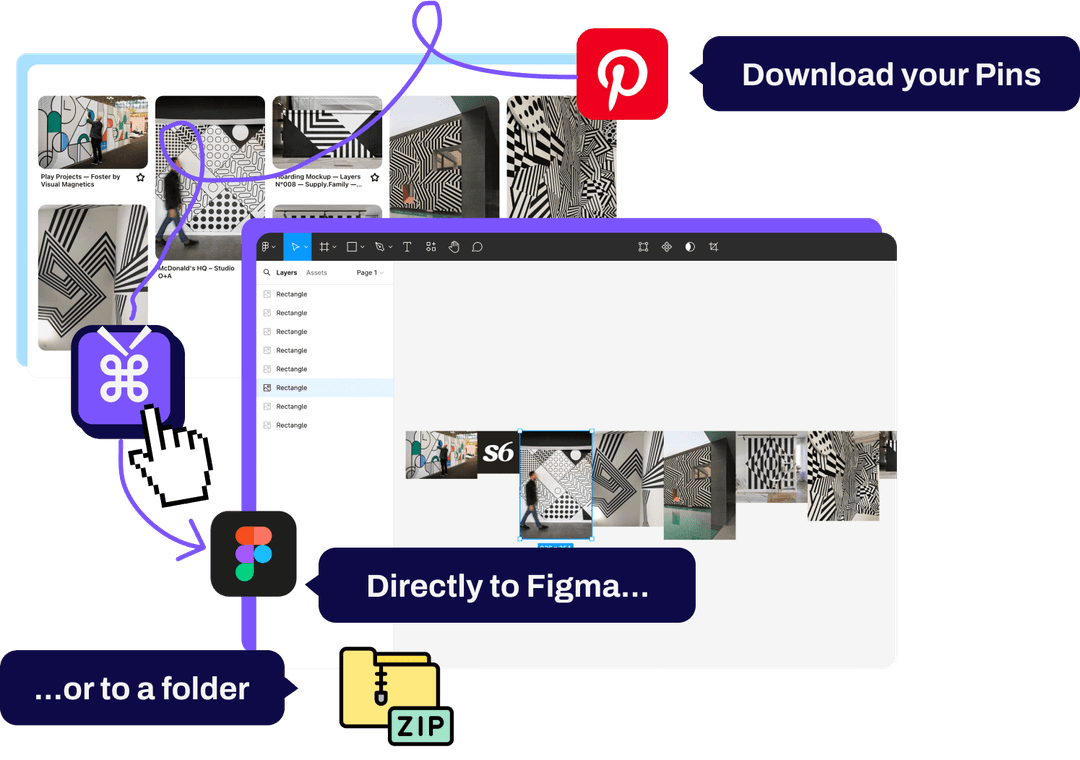
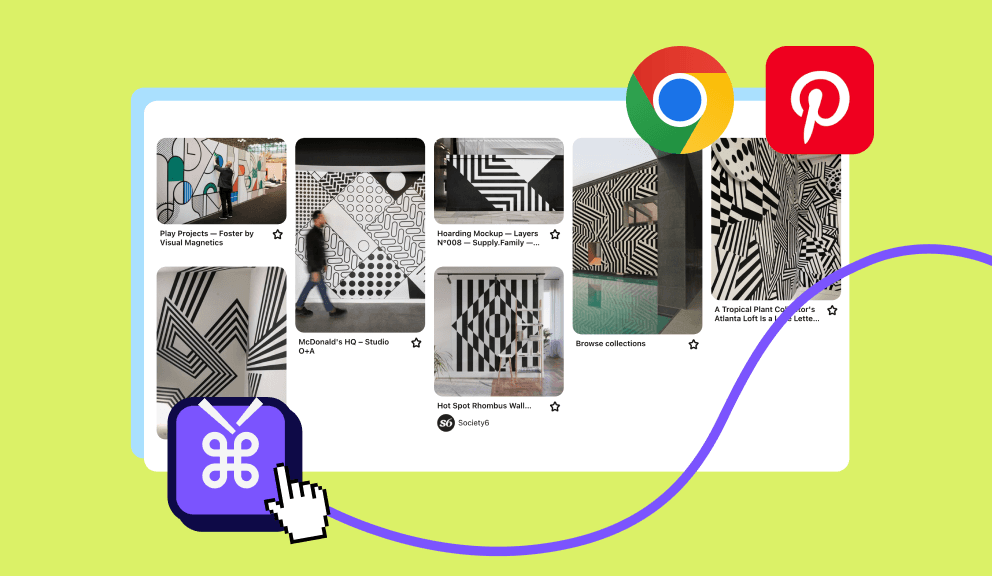
Pinpasta is a Pinterest board downloader (available for Chrome and Firefox) that extracts entire boards in one click. Navigate to your board, click the extension icon, hit "Extract," and either download as a ZIP file or send images directly to Figma.
Time estimate for 40 images: 30 seconds to 1 minute
This is the fastest method and preserves image quality. For designers creating moodboards regularly, it's the most practical option.
Step 3: Create Your Moodboard in Figma (Recommended Workflow)
Figma is the best tool for creating digital moodboards. It's free for basic use, browser-based (no installation), collaborative, and exports easily to PDF or presentation formats.
Here's the step-by-step workflow for creating a moodboard from Pinterest using Figma:
A. Set Up Your Figma File
- Create a new Figma file (name it after the project, e.g., "Brand Identity - Acme Co")
- Create frames for each moodboard section based on your Pinterest board sections
- Use a standard frame size (e.g., 1920x1080 for digital, A4 for print)
Example frame structure for a brand identity moodboard:
- Frame 1: Cover / Overview
- Frame 2: Color Palette & Textures
- Frame 3: Typography & Type Treatments
- Frame 4: Photography Style
- Frame 5: Logo & Icon Inspiration
B. Import Pinterest Images
If you're using Pinpasta with the Figma plugin:
- Extract your Pinterest board in Chrome or Firefox using Pinpasta
- Open Figma and run the Pinpasta plugin (Plugins → Pinpasta)
- Click "Paste" and all images appear in your Figma file instantly
If you're using a ZIP download:
- Unzip the downloaded file
- Drag and drop images into Figma (you can select multiple files at once)
The Pinpasta → Figma method is faster and eliminates file management. Learn more in our Pinterest to Figma guide.
Pinpasta offers direct Pinterest to Figma integration—the only tool with this feature. See how interior designers use it.
C. Arrange Images into Moodboard Layout
Now comes the design work. Drag images into their appropriate frames and arrange them spatially:
- Grid layouts: Clean, organized, good for moodboards with many similar-sized images
- Collage layouts: Overlapping images, varied sizes, more organic feel
- Hero + supporting: One large hero image with smaller supporting images around it
- Categorized sections: Group images by theme with clear visual separation
There's no one "correct" layout. Choose what best communicates the visual narrative. For client-facing moodboards, grid or categorized layouts feel more professional. For internal team moodboards, collage layouts work fine.
D. Add Text, Annotations, and Context
A moodboard isn't just images—it's a curated visual argument. Add text to guide interpretation:
- Section headers: "Color Palette," "Photography Style," etc.
- Image annotations: "Bold, confident typography" or "Warm, tactile textures"
- Descriptive notes: Explain why certain images were chosen or what they represent
- Project context: Add a title slide with project name, date, and moodboard purpose
Text transforms a collection of images into a designed communication tool.
E. Export and Share
Figma makes exporting easy:
- PDF export: File → Export → PDF (whole page or selected frames). Best for client emails or print.
- PNG export: Export individual frames as high-res PNGs for inclusion in decks or documents.
- Live Figma link: Share the Figma link directly with clients for interactive review. They can leave comments and reactions.
Step 4: Alternative Tools for Creating Moodboards from Pinterest
Figma isn't the only option. Here are alternatives depending on your workflow:
Canva (Best for Quick, Template-Based Moodboards)
Canva offers moodboard templates you can customize. Download your Pinterest board with Pinpasta, upload images to Canva, and drag them into a template. Canva is faster than Figma if you want a polished result with minimal design effort.
Best for: Non-designers, quick client moodboards, teams without Figma experience.
PowerPoint or Keynote (Best for Presentation Decks)
If your moodboard is part of a larger presentation, use PowerPoint or Keynote. Download Pinterest images with Pinpasta, import into slides, and arrange. Add text, transitions, and presenter notes as needed.
Best for: Sales presentations, client pitches, moodboards embedded in larger decks.
InDesign (Best for Print-Quality Moodboards)
For printed moodboards or client lookbooks, InDesign offers precise layout control and print-ready output. Download Pinterest images with Pinpasta, import into InDesign, and design multi-page layouts with typography, image grids, and professional finishing.
Best for: Print deliverables, client lookbooks, high-end presentations.
Milanote or Mural (Best for Collaborative Team Moodboards)
Milanote and Mural are visual collaboration tools designed for moodboarding. Download Pinterest images with Pinpasta, upload to Milanote/Mural, and organize in a freeform visual workspace. Team members can add notes, vote on images, or contribute their own references.
Best for: Team brainstorming, collaborative design research, remote workshops.
Best Practices for Creating Moodboards from Pinterest
Limit Your Moodboard to 20-40 Images
More isn't better. A focused moodboard with 30 strong images is more impactful than a sprawling 80-image collection. Every image should contribute something unique.
Group Images by Theme or Category
Don't just dump images onto a canvas. Organize by theme: color, typography, photography, layout, etc. This creates visual hierarchy and makes the moodboard easier to understand.
Include Diverse Image Types
Mix image types for richer moodboards:
- Product/object photography
- Typography treatments
- Color palette swatches
- Textures and materials
- Spatial/environmental shots
- Competitor examples (if relevant)
Add Your Own Design Touches
Don't just paste Pinterest images and call it done. Add text, color overlays, borders, or graphic elements that unify the moodboard into a cohesive design artifact.
Export in Multiple Formats
Create a PDF for email, PNGs for embedding in documents, and keep a live Figma link for collaborative review. Different stakeholders prefer different formats.
Frequently Asked Questions: Creating Moodboards from Pinterest
Q: How many images should a moodboard have?
A: 20-40 images is ideal. Fewer than 20 feels sparse; more than 40 becomes overwhelming. Focus on quality and curation.
Q: Can I use Pinterest images in client moodboards legally?
A: Using Pinterest images in moodboards for client inspiration and concept presentation is generally acceptable fair use. Don't redistribute publicly or use in final marketing materials without licensing.
Q: What's the fastest way to download Pinterest images for moodboards?
A: Use the Pinpasta browser extension (available for Chrome and Firefox). It extracts entire boards in 30 seconds and can send images directly to Figma, eliminating manual downloading and importing.
Q: Should I create moodboards in Figma or PowerPoint?
A: Figma is better for standalone moodboards (more flexible layouts, easier collaboration). PowerPoint is better if the moodboard is part of a larger presentation deck.
Q: How do I organize images from multiple Pinterest boards into one moodboard?
A: Extract each board separately with Pinpasta, then import all images into your design tool. Create sections or frames for each theme and sort images accordingly.
Q: Can I create print-ready moodboards from Pinterest images?
A: Pinterest images are suitable for digital presentations and small-format prints. For large-format printing, source high-resolution images from stock libraries or original photographers.
Transform Pinterest Inspiration into Professional Moodboards
Pinterest is unmatched for gathering visual inspiration, but professional moodboards require structured design and presentation. The key is streamlining the gap between curation and creation.
By curating Pinterest boards strategically, downloading images efficiently with tools like Pinpasta, and designing moodboards in Figma or your preferred tool, you can create client-ready moodboards in minutes instead of hours.
The workflow is simple: curate → extract → design → export. Master this process, and you'll spend more time on design thinking and client communication, and less time on tedious file management.
Create moodboards from Pinterest in minutes, not hours
Extract Pinterest boards, send directly to Figma, build professional moodboards fast. Free ZIP of the first 20 pins per board and Figma pastes of up to 30 pins at a time; $29 lifetime removes both caps. Built for designers.