




Pinterest to Figma: The Only Direct Integration for Designers
Last Updated: March 2026
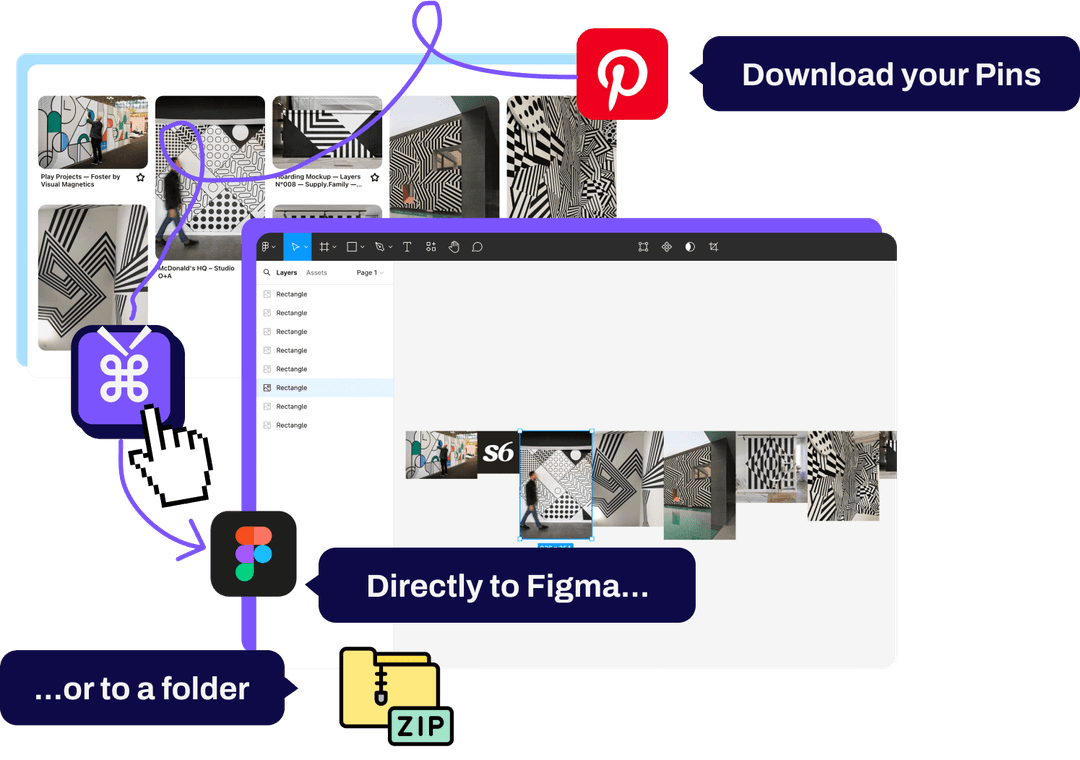
If you're a designer who curates inspiration on Pinterest and builds moodboards in Figma, you know the friction: find an image on Pinterest, right-click to save, navigate to your downloads folder, drag the file into Figma. Repeat 50 times for a single moodboard. There's never been a direct way to move Pinterest images to Figma—until now. Pinpasta is the only Pinterest to Figma tool that lets you extract entire boards and paste them directly into your Figma workspace with one click.
Why the Pinterest to Figma Workflow Matters
Designers live between two worlds: Pinterest, where visual inspiration lives, and Figma, where design work happens. Pinterest is unmatched for discovering and organizing reference images. Figma is the industry standard for creating client-ready moodboards, presentations, and design systems. But these two tools don't talk to each other.
The traditional workflow wastes time and breaks creative flow. You're forced to context-switch between inspiration gathering and moodboard building. Every image requires multiple steps: save, locate file, import, position. For a typical brand identity moodboard with 40-60 reference images, this manual process eats 30-45 minutes of pure overhead.
Worse, right-clicking Pinterest images often gives you low-resolution thumbnails—not the high-quality versions you need for professional presentations. And if you're working with an entire Pinterest board you've curated over weeks, the idea of manually downloading each pin is enough to make you abandon the project altogether.
How Pinterest to Figma Integration Works with Pinpasta
Pinpasta solves this with a two-part system: a browser extension (Chrome or Firefox) that extracts Pinterest content, and a Figma plugin that receives it. Use our Pinterest board downloader to extract entire boards, then paste directly into Figma. This is the only tool on the market that offers direct Pinterest Figma integration—no competitor has built this workflow.
Here's the complete setup process:
Step 1: Install the Pinpasta Browser Extension
Install the Pinpasta extension from the Chrome Web Store (Chrome, Edge, Brave) or Mozilla Add-ons (Firefox). Once installed, you'll see the Pinpasta icon in your browser toolbar.
Step 2: Install the Pinpasta Figma Plugin
Open Figma, go to the Community tab, and search for "Pinpasta" or visit the Pinpasta plugin page directly. Click "Install" to add it to your Figma workspace. The plugin works in both Figma and FigJam.
Step 3: Extract Pinterest Images
Navigate to any Pinterest board, search result, or individual pin. Click the Pinpasta extension icon and hit "Extract." The extension scans the page and processes all visible Pinterest images, grabbing the highest resolution version available.
Pinpasta handles large boards effortlessly—whether it's 10 pins or 1,000+, the extraction process is the same. On the free plan, copy to Figma places up to 30 pins per paste (paste again for the next batch) and ZIP downloads cover the first 20 pins of a board; the Pro version ($29 lifetime) removes both caps.
Step 4: Paste Directly into Figma
Once extraction completes, open Figma and run the Pinpasta plugin (Plugins → Pinpasta). Click "Paste" and all your Pinterest images appear instantly in your Figma file. No downloading, no file management, no manual importing. Pinterest to Figma in seconds.
Use Cases for Pinterest Figma Integration
The Pinterest to Figma workflow isn't just about saving time—it fundamentally changes how designers approach inspiration-driven work. Whether you're building moodboards, client presentations, design research libraries, or style guides, Pinpasta bridges Pinterest and Figma in ways manual workflows simply can't.
Moodboards
Moodboards are the foundation of visual direction. When pitching brand identity, interior design concepts, or creative campaigns, you need curated reference imagery that communicates style, tone, and aesthetic direction. Pinterest is where most designers gather this inspiration—color palettes, typography treatments, photography styles, iconography. With Pinpasta, you can create a moodboard from Pinterest in minutes: extract your entire curated board and arrange it in Figma as a polished, client-ready presentation. Our Pinterest moodboard for interior design guide covers this workflow in detail for spatial and product designers.
Client Presentations and Concept Decks
Creative directors building pitch decks need high-quality reference imagery fast. Instead of manually downloading and importing images one by one, Pinpasta lets you pull entire Pinterest boards into Figma, where you can arrange, annotate, and refine your presentation. The result: faster turnaround and more time spent on strategic thinking instead of file management. Clients see polished concept decks, not scattered screenshots.
Design Research and Competitive Analysis
UX designers conducting visual research often create Pinterest boards organized by UI patterns, competitor screenshots, or design trends. Importing these into Figma creates a shared design research library your team can reference. With Pinpasta's FigJam support, you can run collaborative research workshops where the team annotates and discusses Pinterest-sourced examples in real time. No more "check my email for the screenshots"—everyone works from the same Figma file.
Style Guides
Building a visual style guide or design system often starts with inspiration—reference examples of color usage, typography hierarchies, icon styles, and visual motifs. Design teams curate Pinterest boards to capture these references before codifying them into formal guidelines. Pinpasta lets you extract those inspiration boards and drop them directly into Figma, where you can build your style guide document alongside the references. Whether you're documenting button styles, illustration guidelines, or photography direction, having Pinterest-sourced examples in the same Figma file as your specifications keeps context tight and iteration fast.
Interior and Product Design Inspiration
Interior designers, wedding planners, and product designers live on Pinterest. They curate boards for every project—color schemes, furniture styles, spatial layouts, material textures. Traditionally, creating client-facing moodboards meant exporting these images and rebuilding everything in design software. Pinpasta collapses that workflow: curate on Pinterest, paste into Figma, present to clients. One seamless process. See our Pinterest moodboard for interior design guide for a deeper dive into this use case.
Why No Other Tool Offers Pinterest Figma Integration
Pinpasta is the only tool that connects Pinterest to Figma directly. Competitors focus on downloading Pinterest images to your computer—which solves one problem but leaves you with another (getting those images into Figma).
Building a Pinterest Figma plugin requires understanding both the Pinterest content extraction workflow and Figma's plugin API. It's not technically trivial, and most Pinterest downloader tools are built by developers, not designers. They solve the download problem without considering the broader design workflow.
Pinpasta was built specifically for designers who use Figma. The direct integration isn't a side feature—it's the core value proposition. If your workflow involves Pinterest and Figma, no other tool eliminates as much friction.
Pinpasta vs Pinner (pinterest-to-figma.com)
Pinner, available at pinterest-to-figma.com, is another tool that offers Pinterest to Figma integration. If you're evaluating options, here's how the two compare.
Pinner lets you send individual Pinterest pins to Figma via a browser extension. You click a pin, use Pinner to "send" it, then paste in Figma. It works—but the workflow is pin-by-pin. For a moodboard with 30 images, you'd need to repeat the process 30 times. Pinner doesn't extract entire boards in one batch, so scaling to larger projects becomes tedious. The tool also has fewer customization options and no FigJam-specific optimization.
Pinpasta, by contrast, extracts entire Pinterest boards (or search results, or any page with pins) in a single click. Extract 10 pins or 1,000 pins—the process is identical. One extraction, one paste, and all your images land in Figma. Pinpasta's browser extension (Chrome and Firefox) handles bulk extraction natively, and the Figma plugin supports both Figma and FigJam with full workflow parity. For designers building comprehensive moodboards, research libraries, or client presentations from Pinterest, the batch workflow makes Pinpasta the more efficient choice.
Bottom line: if you occasionally need to send one or two pins to Figma, either tool works. For serious design work—moodboards, competitive analysis, style guides, or any project involving many Pinterest images—Pinpasta's board-level extraction saves significant time and keeps you in flow.
Manual Methods vs Pinpasta
Before tools like Pinpasta existed, designers had no choice but to bridge Pinterest and Figma manually. Understanding these alternatives helps justify why the direct integration matters.
Manual download method: Right-click each Pinterest image, save to your downloads folder, open Figma, and drag files in one by one. For a 40-image moodboard, this takes 30+ minutes. Worse, Pinterest's right-click option often serves low-resolution thumbnails—not the full-size files you need for professional presentations. The process is slow, tedious, and constantly interrupts your creative flow. Every image requires multiple context switches: Pinterest → save → locate file → Figma → drag. See our guide on how to download all pins from a board for why bulk extraction matters.
Screenshot method: Some designers screenshot Pinterest boards and import the entire screenshot into Figma. This is faster but unprofessional—you get low-resolution, watermarked images with Pinterest UI elements visible. Not suitable for client presentations or design deliverables.
Third-party downloaders + manual import: Tools like Pin Toolbox or WFDownloader let you download Pinterest boards as ZIP files, but you still need to unzip, sort through files, and manually import them to Figma. You save some time on the download step, but the import process remains manual and slow. You're solving half the problem.
Pinpasta Pinterest to Figma integration: Extract the board in Chrome or Firefox, paste in Figma. Two clicks. High-resolution images. No file management. No downloads folder. No manual importing. This is the only solution that eliminates the entire download-import-organize workflow. The images go directly from Pinterest to Figma without touching your file system.
FigJam Support for Collaborative Inspiration Boards
Pinpasta works in FigJam, Figma's collaborative whiteboard tool. This opens up use cases beyond individual moodboards:
- Team Design Sprints: Paste Pinterest inspiration into FigJam during brainstorming sessions. Team members can react, comment, and vote on visual directions in real time.
- Client Workshops: Run collaborative sessions where clients explore Pinterest-sourced inspiration alongside your team. Everyone works from the same visual references, reducing miscommunication.
- Design Critiques: Import competitor examples or design trends from Pinterest into FigJam for structured critique sessions.
The same Pinterest to Figma workflow applies: extract in your browser (Chrome or Firefox), paste in FigJam. The integration works identically across both tools.
Tips for Getting the Most Out of Pinterest to Figma
To maximize the value of Pinpasta's Pinterest Figma integration, consider these workflow tips:
Organize Pinterest boards by project: Create separate Pinterest boards for each client project or design direction. When you're ready to build the moodboard in Figma, extract the relevant board in one batch rather than cherry-picking individual pins. This keeps your inspiration organized and your Figma workflow predictable.
Use Figma frames for structure: Before pasting Pinterest images, set up labeled frames in Figma (e.g., "Color Palette," "Typography," "Photography Style"). After pasting, drag images into their appropriate frames. This keeps large moodboards organized and client-ready without post-paste scrambling.
Curate first, extract later: Don't extract Pinterest boards prematurely. Spend time curating, refining, and removing weak references. A tight 30-image board is more valuable than a sprawling 100-image dump. Extract when your curation is finished. Quality over quantity.
Extract from search results when prototyping: You don't have to be on a board. Pinpasta works on Pinterest search results, individual pin pages, and profile grids. If you're exploring a new direction and haven't yet created a board, extract directly from search—then create a board later if the direction sticks.
Upgrade to Pro for large ZIPs: The free plan pastes up to 30 pins into Figma at a time, and free ZIP downloads are capped at the first 20 pins of a board. If you need to download entire Pinterest boards of 100+ images as ZIP files for offline storage or client folders, the Pro version's unlimited ZIPs are worth it. $29 lifetime is cheaper than the time you'd waste on manual downloading.
Combine with other inspiration sources: Pinterest isn't the only source of visual inspiration. Use Pinpasta for Pinterest content, then supplement with Unsplash, Dribbble, or proprietary photography. The goal is a well-rounded moodboard, not just a Pinterest dump.
Leverage FigJam for team alignment: Run the Pinpasta plugin inside FigJam when you need feedback or alignment. Team members can react, comment, and vote on Pinterest-sourced references in real time—useful for kickoff meetings and creative reviews.
Image Quality and Resolution
One concern designers have with any Pinterest image downloader is image quality. Pinterest compresses uploads, and not all downloaders grab the highest resolution available.
Pinpasta addresses this by downloading the original full-resolution file for every pin, with real filenames (pin id + title) and a report file listing every pin. That's sufficient for digital presentations and moodboards. For print projects requiring absolute highest resolution, always source final images from stock libraries or photographers, and use Pinterest for directional inspiration only.
Frequently Asked Questions About Pinterest to Figma
Q: Is Pinpasta the only tool that offers Pinterest to Figma integration?
A: Yes. Pinpasta is the only Pinterest downloader with a companion Figma plugin that allows direct pasting of Pinterest images into Figma without downloading files first. No other tool on the market offers this workflow.
Q: Does the Pinterest to Figma workflow work in FigJam too?
A: Yes. The Pinpasta Figma plugin works in both Figma and FigJam. The extraction and pasting process is identical for both tools.
Q: Can I import Pinterest images to Figma without the Pinpasta plugin?
A: You can manually download Pinterest images and drag them into Figma, but this is slow and breaks your workflow. The Pinpasta plugin is what enables the one-click Pinterest to Figma integration.
Q: How many Pinterest images can I send to Figma at once?
A: Extraction works on boards of any size. On the free plan, the Figma plugin places up to 30 pins per paste—paste again for the next batch—and ZIP downloads cover the first 20 pins of a board. The Pro version ($29 lifetime) removes both caps.
Q: Do I need both the browser extension and the Figma plugin?
A: Yes. The browser extension (Chrome or Firefox) extracts Pinterest content, and the Figma plugin receives it. Both components are required for the Pinterest to Figma workflow to work.
Q: Will this work if I use Firefox, Brave or Edge instead of Chrome?
A: Yes. Pinpasta is available on Firefox via Mozilla Add-ons, and works on any Chromium-based browser (including Brave and Edge) via the Chrome Web Store.
Q: Can I extract private Pinterest boards and send them to Figma?
A: Yes, as long as you're logged into Pinterest and have access to the board, Pinpasta can extract it. This works for public, private, and secret boards.
Q: Does Pinpasta maintain image organization when pasting into Figma?
A: Images are pasted into Figma in the order they appear on the Pinterest board. From there, you can manually arrange them into frames or groups as needed for your moodboard.
For specific workflows, see our guides for interior designers, creating moodboards from Pinterest, and wedding planners. Or explore all our Pinterest downloading guides including the board downloader and image downloader.
Getting Started with Pinterest to Figma
If you're a designer who uses Pinterest for inspiration and Figma for client work, the Pinpasta workflow eliminates hours of manual downloading and importing. It's the only tool that bridges these two platforms directly.
The free version gives you Figma pastes of up to 30 pins at a time and ZIP downloads of the first 20 pins per board, which is enough for most small moodboards. If you want to remove both caps, the Pro version is a one-time $29 payment—no subscription.
Install the browser extension (Chrome or Firefox) and Figma plugin, extract your first Pinterest board, and paste it into Figma. You'll immediately see how much time this saves. No more file management, no more tedious importing, no more broken creative flow. Just Pinterest to Figma, the way it should have worked from the beginning.
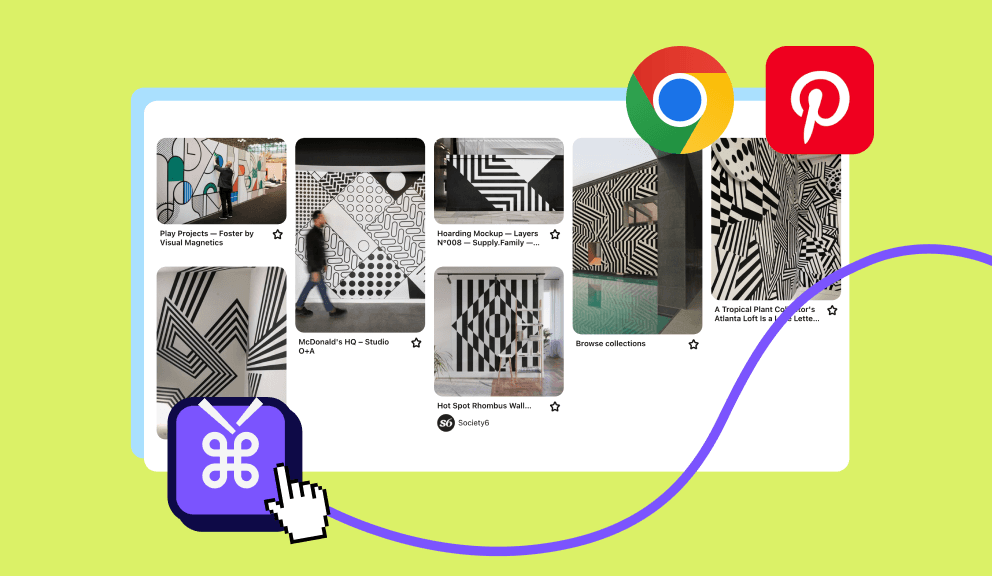
Send Pinterest images directly to Figma with one click
Pinpasta is the only tool that connects Pinterest to Figma. Extract entire boards in Chrome or Firefox, paste them instantly into Figma or FigJam. No downloading, no importing, no friction. Built for designers.